Understand the complete tenant registration flow — from when a customer clicks "Sign Up" to when they access their CRM for the first time.
Let's walk through exactly what happens when a new customer signs up on your SaaS platform. Understanding this flow helps you troubleshoot issues and optimize the experience.
Watch the Video Tutorial
Complete tenant registration flow walkthrough
The Complete Flow
Step 1: Customer Visits Your Landing Page
The customer finds your landing page (either through your marketing, a direct link, or search engine) and sees your pricing plans.
Customers see your plans with clear pricing and feature comparison
Step 2: Customer Clicks "Get Started" / "Sign Up"
They choose a plan and are taken to the registration form.
Step 3: Customer Fills In the Registration Form
The registration form collects essential information:
The registration form — simple and clean with Primary Contact and Company Information fields
The form includes:
Primary Contact (Personal Details):
Field
Required?
Description
First Name
Yes
Tenant's first name
Last Name
Yes
Tenant's last name
Email
Yes
Will be used for login and communication
Password
Yes
Account password
Company Information:
Field
Required?
Description
Company Name
Yes
The name of the tenant's business
Company Subdomain/URL
Yes
Their desired subdomain (e.g., "acme" → acme.yoursite.com)
Plan Selection
Yes
Which plan they're signing up for
Step 4: Email Verification (If Enabled)
If you've enabled email verification in Tenant Settings, the customer sees a verification screen:
After registration, tenants see this page asking them to verify their email
They receive two emails:
Email 1: Welcome Email
A professional welcome email with their account details
Email 2: Verification Link
The verification email with a click-to-verify link
Step 5: Tenant Accesses Their CRM
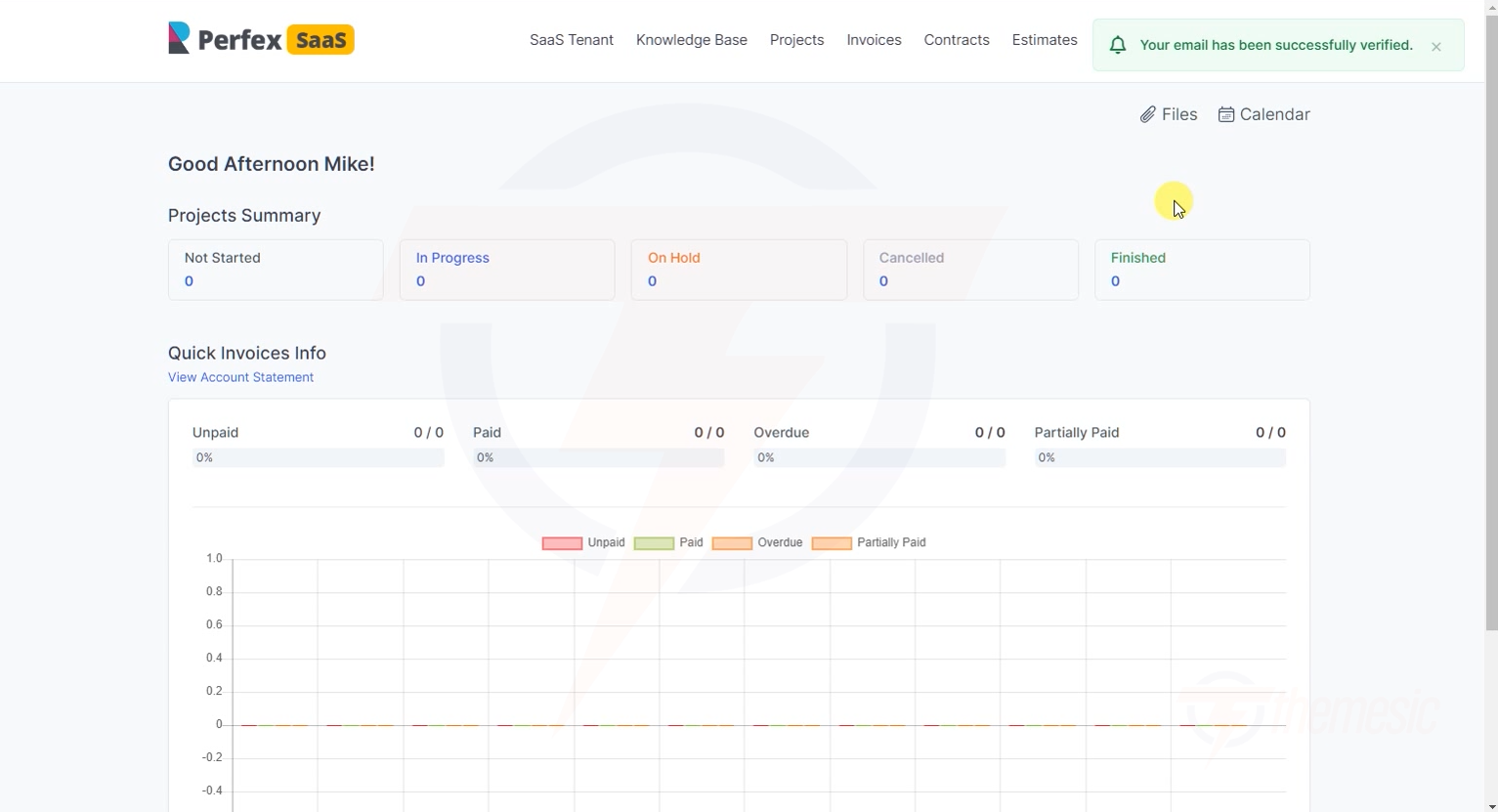
After verification (or immediately, if verification is disabled), the tenant can access their CRM:
The tenant's CRM dashboard — fully functional from day one with their own data space
What Happens Behind the Scenes
Here's what the module does automatically during registration:
All of this happens in seconds — your customer goes from clicking "Sign Up" to having a fully functional CRM in under a minute!
Customizing the Registration Experience
Custom Registration Fields
You can customize the registration form through Perfex CRM's custom fields feature. Go to Setup → Custom Fields and add fields for the Customers group.
Conversion Tip: Keep the registration form as short as possible. Every additional field reduces signups. Collect only what you need — you can always ask for more information later.
Customer submits registration form
        ↓
Module validates the form data
        ↓
Module creates a new Client record in Perfex CRM
        ↓
Module creates a new MySQL database for the tenant
        ↓
Module populates the database with Perfex CRM tables
        ↓
Module configures the tenant's subdomain/subdirectory
        ↓
Module creates the tenant's admin account
        ↓
Module sends welcome email + verification email
        ↓
Tenant record appears in your admin panel ✅