If your server has cPanel or WHM, follow this guide for the easiest setup path. The module integrates directly with cPanel for automatic provisioning.
If your hosting uses cPanel or WHM (Web Host Manager), you're in luck — the SaaS module can automatically create cPanel accounts, databases, and subdomains for each tenant. This is the easiest and most hands-off setup available.
What is cPanel? cPanel is a web hosting control panel that many hosting providers use. If you log in to your hosting and see a dashboard with icons like "MySQL Databases," "File Manager," "Email Accounts," etc., you're using cPanel. WHM is the reseller/admin version of cPanel.
When to Use This Guide
Use this guide if:
✅ Your server has cPanel or WHM installed
✅ You want the simplest possible setup
✅ You want automatic database creation for tenants
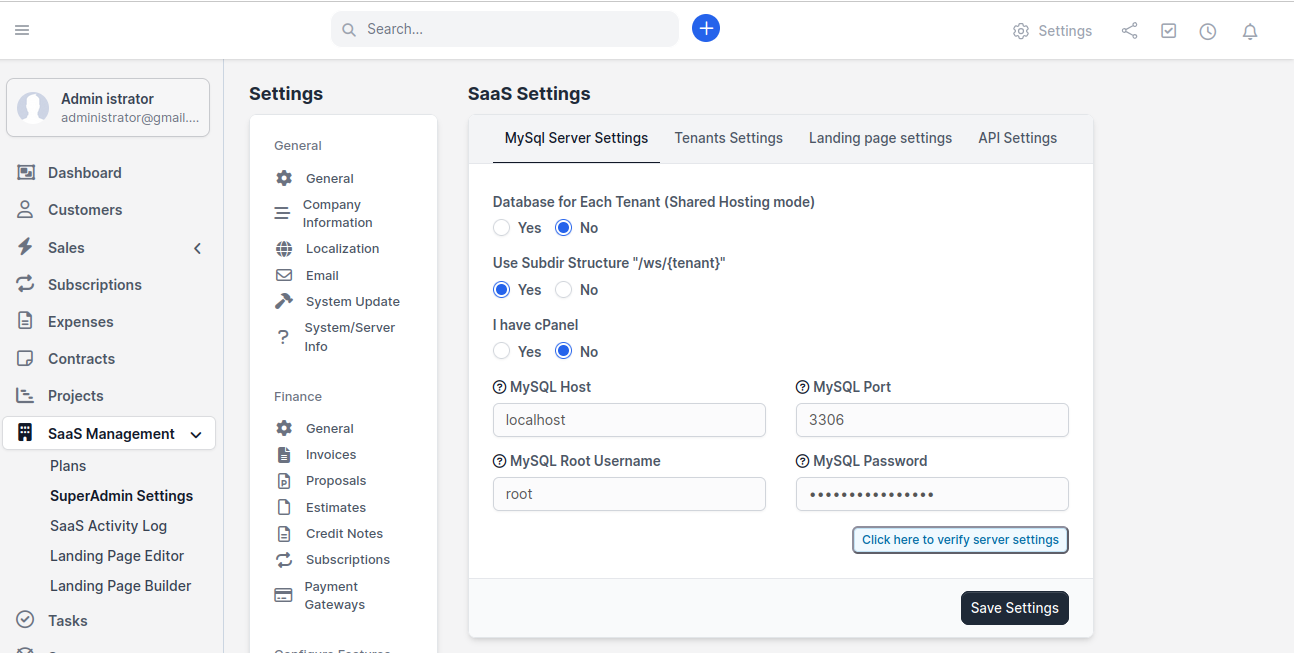
Select "Yes" for "I have cPanel" to enable automatic cPanel integration
Step 2: Configure MySQL Credentials
Still on the MySQL Server Settings tab:
Field
What to Enter
MySQL Host
localhost (usually)
MySQL Port
3306 (default)
MySQL Root Username
Your cPanel username OR a MySQL user with full privileges
MySQL Password
The corresponding password
cPanel MySQL Note: On most cPanel servers, database names and usernames are prefixed with your cPanel username. For example, if your cPanel username is john, a database might be named john_tenantdb. The module handles this automatically.
Step 3: Verify the Connection
Click "Click here to verify server settings"
You should see a success message confirming the connection works
Click Save Settings
If verification fails:
Make sure your MySQL username and password are correct
Check if the MySQL user has ALL PRIVILEGES (go to cPanel → MySQL Databases → User Privileges)
If using WHM, make sure the MySQL user is created at the WHM level
Step 4: Configure Your Domain in cPanel
For subdomain mode, you need to add a wildcard subdomain in cPanel:
Log in to cPanel
Go to Domains (or "Subdomains" in older cPanel versions)
Add a new subdomain with * as the subdomain name
Point it to the same directory as your main Perfex CRM installation
Save
For subdirectory mode, no additional cPanel configuration is needed.
Step 5: Test the Setup
Go back to your Perfex CRM admin panel
Navigate to SaaS Management → Plans
Make sure you have at least one plan created
Visit your landing page URL
Try registering a test tenant
If the tenant is created successfully with their own database — everything is working!
How cPanel Auto-Provisioning Works
Here's what happens behind the scenes when a tenant signs up:
You don't need to do anything manually — it's all automatic!
cPanel vs WHM: What's the Difference?
Feature
cPanel
WHM
Who uses it
Individual account holders
Server administrators / Resellers
Database creation
Creates databases under your account
Can create databases under any account
Best for
Single-server setups
Large-scale, multi-server deployments
Our module supports
✅ Yes
✅ Yes
Setup complete? Your cPanel integration is now configured! Next, set up SSL certificates to ensure secure connections for all your tenants.
Tenant signs up on your landing page
        ↓
Module creates a new MySQL database via cPanel API
        ↓
Module sets up the database with Perfex CRM tables
        ↓
Module creates the tenant's subdomain/subdirectory
        ↓
Tenant receives welcome email
        ↓
Tenant can log in to their own CRM! ✅