View and manage all tenant details from the admin panel — plan info, usage statistics, custom domains, add-ons, and more.
As an admin, you have full visibility into every tenant on your platform. The tenant detail view shows you everything about a specific tenant — their plan, usage, subscription status, and more.
Accessing Tenant Details
Go to Customers in the main Perfex CRM sidebar
Click on any customer/client that is a SaaS tenant
You'll see the standard Perfex client view, PLUS a SaaS Tenant section
What You Can See
Subscription Information
Subscription details at a glance — company info, domain, plan, creation date, and expiry
Information
Description
Company's Name
The tenant's registered company name
Company's Domain
The URL the tenant uses to access their CRM
Selected Plan
Which subscription plan they're on
Created at
When the tenant account was created
Plan Expiry Date
When their current billing period ends
Next Invoice Date
When the next invoice will be generated
Plan Usage & Quotas
The admin panel shows you exactly how much of their plan quota each tenant has used:
At-a-glance view of tenant usage — Total Customers 0/2, Total Invoices 0/2, Total Projects 0/2, etc.
Comprehensive admin view showing the tenant's plan, next invoice date, and all resource counters
You can see at a glance:
Total Customers used / limit
Total Invoices used / limit
Total Estimates used / limit
Total Proposals used / limit
Total Contracts used / limit
Total Projects used / limit
Total Tasks used / limit
Total Leads used / limit
Total Staffs used / limit
Total Tickets used / limit
Total Credit Notes used / limit
Total Expenses used / limit
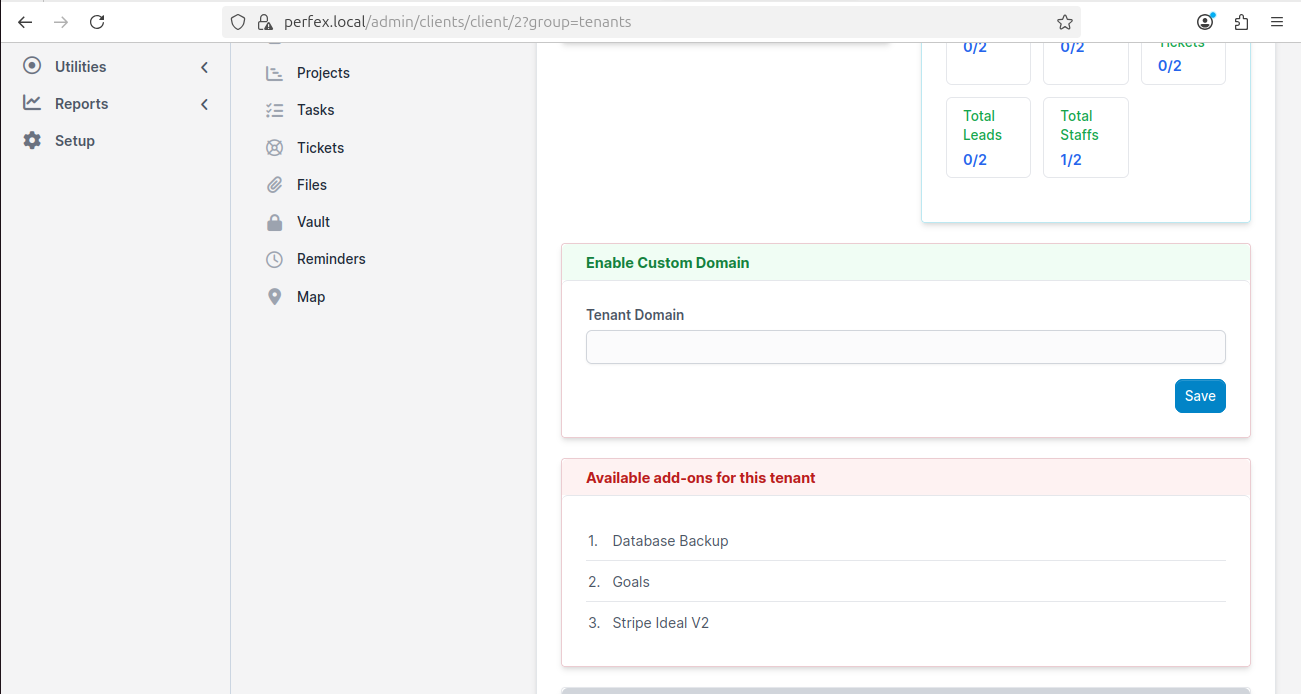
Custom Domain Status
If the tenant has a custom domain configured, you'll see it here:
View the tenant's custom domain and manage their add-ons from the admin panel
Available Add-ons
Below the custom domain section, you'll see which add-ons are available and which are enabled for this specific tenant.
Common Admin Tasks
Change a Tenant's Plan
Open the tenant's profile
Go to the SaaS section
Change the plan from the dropdown
Save — the new plan limits take effect immediately
Extend a Tenant's Subscription
Open the tenant's profile
Adjust the plan expiry date
Save
View a Tenant's CRM
Click on the tenant's Company Domain link to open their CRM in a new tab. This lets you see exactly what the tenant sees.
Delete a Tenant
Open the tenant's profile
Use the delete option
Confirm — this will delete the tenant's database and all their data
Deleting a tenant is permanent! All their data, database, and configuration will be removed. Make sure you (or the tenant) have backups if needed.
Monitoring Multiple Tenants
For a bird's-eye view of all tenants:
Go to Customers and filter by SaaS tenants
Check the SaaS Activity Log for recent events
Review the admin dashboard for overall platform health
Know your dashboard? Learn about the Find My Tenant feature — a self-service tool that helps your tenants find their login URL.