Step-by-step guide to installing the Perfex CRM SaaS Module. Follow these instructions carefully and you'll be done in about 10 minutes.
This guide walks you through installing the SaaS Module on your Perfex CRM. It's straightforward — just follow each step carefully.
Prerequisites: Make sure you've completed the Requirements checklist before starting this installation.
Watch the Installation Video
Prefer watching over reading? Here's a complete video walkthrough:
Step-by-step module installation walkthrough
Step 1: Download the Module
Go to CodeCanyon and find "SaaS Module for Perfex CRM" in your downloads
Click the Download button
Choose "Installable File Only" (this gives you just the module zip file)
Save the .zip file to your computer
Important: Download the "Installable File Only" option — NOT "All files & documentation." The installable file is the one you'll upload to Perfex CRM.
Step 2: Upload to Perfex CRM
There are two ways to upload the module. Choose whichever is easier for you:
Option A: Upload via Perfex Admin Panel (Recommended)
This is the easiest method:
Log in to your Perfex CRM Admin Panel
Go to Setup (in the left sidebar)
Click on Modules
Click the Upload Module button (top right corner)
Select the .zip file you downloaded in Step 1
Click Upload
Wait for the upload to complete (this may take a moment depending on your server speed)
Option B: Upload via FTP/SFTP
If the admin panel upload doesn't work (some servers have upload size limits), use this method:
Extract the .zip file on your computer
Connect to your server using an FTP client (like FileZilla — it's free)
Navigate to your Perfex CRM directory: your-perfex-folder/modules/
Upload the extracted module folder into the modules/ directory
The final path should look like: your-perfex-folder/modules/saas/
What's FileZilla? It's a free program that lets you upload files to your web server. Think of it like a file manager for your website. Download it from filezilla-project.org.
Step 3: Activate the Module
After uploading, you need to activate the module:
In your Perfex CRM Admin Panel, go to Setup → Modules
You should see "SaaS Module" in the list of available modules
Click the Activate button next to it
The page will reload — this means the module is now active!
After activation, you'll notice a new menu item in your left sidebar: SaaS Management. This is your command center for everything SaaS-related.
After activation, the SaaS Management menu appears in your sidebar with all configuration options
Step 4: Enter Your Purchase Code
Go to SaaS Management → SuperAdmin Settings
Enter your CodeCanyon Purchase Code
Click Verify or Save
Where to find your purchase code: Go to codecanyon.net/downloads, find the SaaS module, click the Download dropdown, and select "License Certificate & Purchase Code." The purchase code is in the text file that downloads.
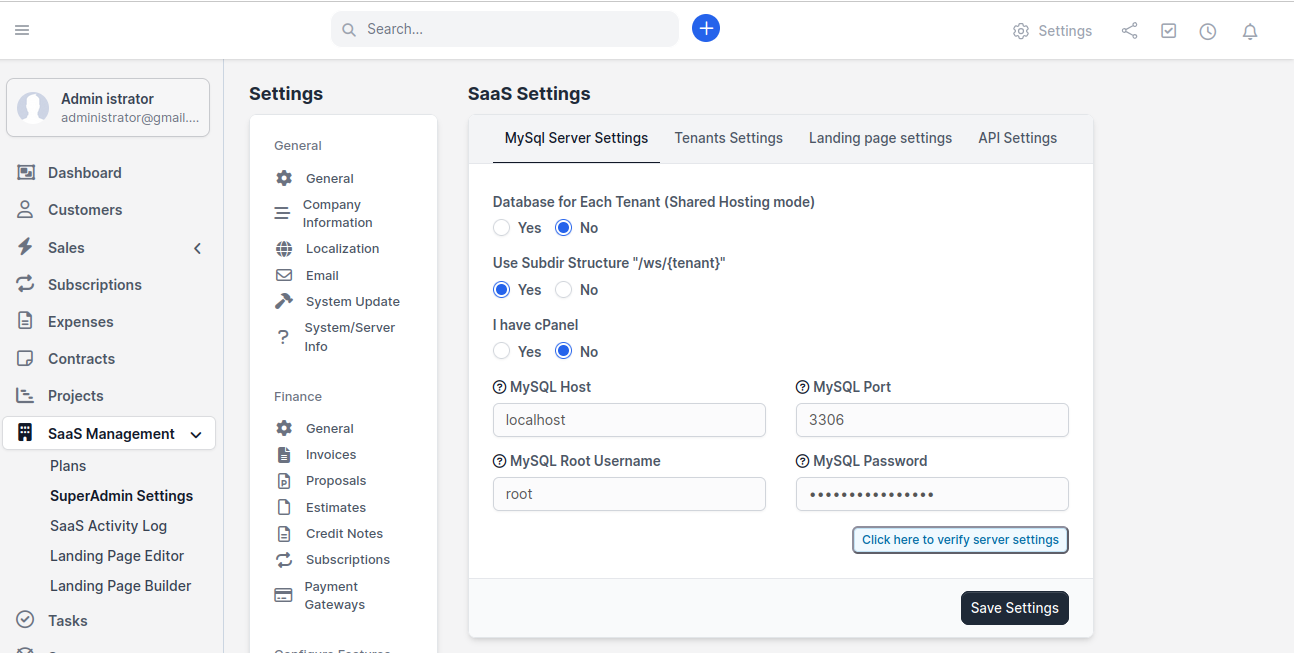
Step 5: Configure MySQL Server Settings
This is the most important configuration step. The module needs MySQL credentials to create databases for your tenants.
Go to SaaS Management → SuperAdmin Settings
Click the MySQL Server Settings tab
Fill in the following fields:
Field
What to Enter
Example
Database for Each Tenant
Select Yes for isolated databases (recommended) or No for shared database
Yes
Use Subdir Structure
Select Yes if you want yoursite.com/ws/tenant-name URLs
Yes
I have cPanel
Select Yes if your server uses cPanel, No if not
Depends on your hosting
MySQL Host
Usually localhost
localhost
MySQL Port
Usually 3306
3306
MySQL Root Username
Your MySQL username with CREATE DATABASE privilege
root
MySQL Password
The password for the MySQL user above
your-password
MySQL Server Settings — fill in your database connection details here
Click "Click here to verify server settings" — this tests your MySQL connection
If verification succeeds, click Save Settings
Verification failed? This usually means:
The MySQL username or password is wrong
The MySQL user doesn't have CREATE DATABASE privileges
MySQL is not running on the host/port you specified